

iTRACS CI
With iTRACS CI modules in Make, you can create and retrieve assets, search assets, manufacturers, and templates, retrieve asset ancestors, and access related visual and template resources.
 Prerequisite: This document assumes that you already have a base knowledge of using the Make platform.
What iTRACS CI modules are available in the Make platform
- Assets - Get an Asset, Search Assets, Create an Asset, Update an Asset, Delete an Asset, Get an Asset Ancestors
- Templates - Search Templates, Get a Template, Get a Template Image, Get a Template .3ds File
- Manufacturers - Search Manufacturers, Get a Manufacturer
- Visual - Get an Enclosure Visual, Get a Panel Visual, Get a Row Visual, Get a Tile Grid Visual
- Other - Make an API Call
Connect iTRACS CI to Make
To use iTRACS CI in Make, you’ll need your Registered BPT App License Key and an authorized iTRACS CI account with valid connection details.To use the iTRACS CI modules, you must have an iTRACS CI account and the required connection details.
Refer to the iTRACS CI API documentation for details about the available endpoints and resources.
How do I request a BPT App License Key
After purchasing your app either as part of a bundle or separately, you should have received an email containing the BPT App License Key. If you have not received an email or if you are yet to purchase the app please use the Frequently Asked Questions that will guide you through the process.
How to Create a connection for your Make module
- Login to Make > select Scenarios > select Create a new scenario.
- Search for iTRACS CI and select any module you intend to use.
- Under Connection, click Create a connection.
- The Create a Connection dialog appears.
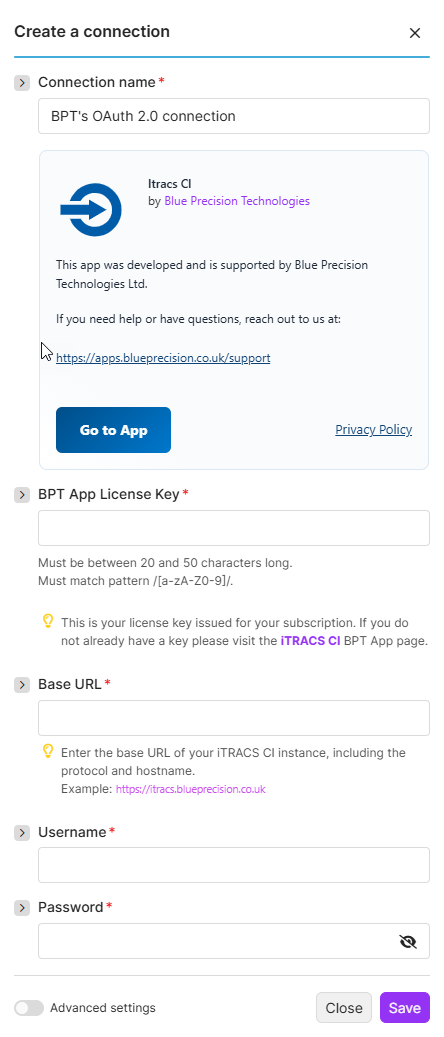
- In the Connection name field, enter a name to identify the connection.
- Enter your Registered BPT App License Key.
For more information on how to acquire a BPT App License Key, refer to the
FAQ
page.- Enter your iTRACS CI username and password.
- Enter your iTRACS CI base URL.
- Click Save.
You have successfully established the connection. You can now edit your scenario and add more iTRACS CI modules. If your connection requires reauthorization at any point, follow the connection renewal steps here .
Build iTRACS CI Scenarios
After connecting the app, you can perform the following actions:
Assets
Get an Asset
Returns a single asset that matches the given identifier.
This module contains the following fields
| Field | Description |
|---|---|
| Connection | Select or create the iTRACS CI connection to use for this module. |
| Asset ID * | Enter the identifier of the asset to retrieve. Required. |
| Show Details | Select related asset data to return. This is an advanced multi-select field. Available options: Children, Class, Parent, Template. |
Search Assets
Retrieves a collection of assets matching the given search term
This module contains the following fields
| Field | Description |
|---|---|
| Connection | Select or create the iTRACS CI connection to use for this module. |
| Search Text | Enter the string to use in the full text search. For example: John Doe. |
| Limit | Set the maximum number of returned results. Default: 10. |
| Include Column Set | Select additional columns to include in the response. Set to false by default. (advanced) |
| Include Class | Select whether to include the class in the response. Set to false by default. (advanced) |
Create an Asset
Returns a collection of created asset resources.
This module contains the following fields
| Field | Description |
|---|---|
| Connection | Select or create the iTRACS CI connection to use for this module. |
| Name * | Enter the asset name. Required. |
| Parent Asset * | Select or search for the parent asset. Required. |
| Class | Select or search for the asset class. |
| Template | Select or search for the asset template. |
| Position | Enter the asset position. |
| Orientation | Select the asset orientation. Available options: Front, Back. |
| Attributes | Add one or more attribute values for the asset. |
| Attribute | Select the attribute definition from dropdown field. |
| Value | Enter the attribute value. |
Update an Asset
Update an asset resource
This module contains the following fields
| Field | Description |
|---|---|
| Connection | Select or create the iTRACS CI connection to use for this module. |
| Asset * | Select or search for the asset to update. Required. |
| Name | Enter the updated asset name. |
| Connections | Select the connection scope. Available options: All, External, Within. |
| State | Select the asset state. Available options: Production, Inventory, Pending Retire, Retired, Destroyed, Installed, Build, Shipped, Site Storage, No State. |
| Sub-class | Select or search for the asset sub-class. |
| Delete Sub-class | Select whether to remove the sub-class from the asset. |
Delete an Asset
Delete an Asset
This module contains the following fields
| Field | Description |
|---|---|
| Connection | Select or create the iTRACS CI connection to use for this module. |
| Asset ID * | Enter the identifier of the asset to delete. Required. |
Templates
Search Templates
Returns a collection containing all templates that match the given query
This module contains the following fields
| Field | Description |
|---|---|
| Connection | Select or create the iTRACS CI connection to use for this module. |
| List of ID to Search | Filter by a list of template IDs. |
| Show Details | Select related data to expand in the response. Available options: Children. |
| In Use | Filter for templates that are currently used or not used. |
| Manufacturer ID | Filter by a comma-delimited list of manufacturer IDs. |
| Manufacturer Name | Filter by a comma-delimited list of manufacturer names. |
| Name | Filter by a comma-delimited list of template names. |
| Model ID | Filter by a comma-delimited list of model IDs. |
| Types | Filter by one or more template types. Available options: Unknown, Enclosure Folder, Equipment Folder, Plugin Folder, Connector Folder, Tile Folder, 3D Object Folder, CAD Object Folder, Closet, Enclosure, CMB, Panel, Plugin, Tile, Connector Definition, Generic 3D Object, CAD Object, Door, Image Zone, Connector, Slot, Datalink, Label, Graphic, Rectangle, Connection Point, Connected State. |
| Sort By | Sort Results by one or more fields either acending or descending. Available options: id, instanceCount, manufacturer, model, name, type. |
| Query | Enter a query using a property-delimited list, with each property using comma-delimited operator-value expressions. |
| Limit | Set the maximum number of returned results. Default: 10. |
Get a Template
Returns a single template that matches the given identifier.
This module contains the following fields
| Field | Description |
|---|---|
| Connection | Select or create the iTRACS CI connection to use for this module. |
| Template ID * | Enter the identifier of the template to retrieve. Required. |
| Show Details | Select related template data to return. This is an advanced multi-select field. Available options: Children. |
Get a Template Image
Returns a single template image that matches the given identifier.
This module contains the following fields
| Field | Description |
|---|---|
| Connection | Select or create the iTRACS CI connection to use for this module. |
| Template ID * | Enter the identifier of the template. Required. |
| Image Orientation | Select the orientation of the image to retrieve. Available options: Front, Back, Top. |
Get a Template .3ds File
Retrieves 3ds files for a template
This module contains the following fields
| Field | Description |
|---|---|
| Connection | Select or create the iTRACS CI connection to use for this module. |
| Template ID * | Enter the identifier of the template. Required. |
Manufacturers
Search Manufacturers
Returns a collection containing all manufacturers that match the given query.
This module contains the following fields
| Field | Description |
|---|---|
| Connection | Select or create the iTRACS CI connection to use for this module. |
| List of ID to Search | Filter by a list of manufacturer IDs. |
| Show Details | Select related data to expand in the response. Available options: Children. |
| In Use | Filter for templates that are currently used or not used. |
| Name | Filter by a comma-delimited list of manufacturer names. |
| Model ID | Filter by a comma-delimited list of model IDs. |
| Sort By | Sort result by one or more fields. Supported sort properties: id, and name. (advanced) |
| Query | Enter a query using a property-delimited list, with each property using comma-delimited operator-value expressions. (advanced) |
| Limit | Set the maximum number of returned results. Default: 10. |
Get a Manufacturer
Returns a single manufacturer that matches the given identifier.
This module contains the following fields
| Field | Description |
|---|---|
| Connection | Select or create the iTRACS CI connection to use for this module. |
| Manufacturer ID * | Enter the identifier of the manufacturer to retrieve. Required. |
| Show Details | Select related manufacturer data to return. This is an advanced multi-select field. Available options: Model. |
Visual
Get an Enclosure Visual
Retrieve enclosure visual resources
This module contains the following fields
| Field | Description |
|---|---|
| Connection | Select or create the iTRACS CI connection to use for this module. |
| Enclosure Asset ID * | Enter the identifier of the enclosure asset. Required. |
Get a Panel Visual
Retrieve Panel Visual Resources
This module contains the following fields
| Field | Description |
|---|---|
| Connection | Select or create the iTRACS CI connection to use for this module. |
| Panel ID * | Enter the identifier of the panel. Required. |
Get a Row Visual
Retrieve Row Visual Resources
This module contains the following fields
| Field | Description |
|---|---|
| Connection | Select or create the iTRACS CI connection to use for this module. |
| Row ID * | Enter the identifier of the row. Required. |
Get a Tile Grid Visual
Retrieves Tile Grid Visual Resources
This module contains the following fields
| Field | Description |
|---|---|
| Connection | Select or create the iTRACS CI connection to use for this module. |
| Tile Grid ID * | Enter the identifier of the tile grid. Required. |
Other
Make an API Call
Make an API Call
This module contains the following fields
| Field | Description |
|---|---|
| Connection | Select or create the iTRACS CI connection to use for this module. |
| URL | Enter a path relative to the iTRACS CI API base URL. For example: /v2/users. |
| Method | Select the HTTP method to use for the request. Available options: GET, POST, PUT, PATCH, DELETE. |
| Headers | Add request headers. You do not need to add authorization headers, these are already added for you. Default header: Content-Type: application/json. |
| Query String | Add query string parameters to send with the request. |
| Body | Enter the request body for methods that support a payload. |